Nov 29, 2009
MAYA Tutorial - Introduction

Maya is the 3-D animation software that provides a number of tools for creating complex characters and animations. Maya's powerful feature set gives you an almost unlimited power to create any kind of animation. The functionality of the Maya software can be extended with the use of MEL (Maya embedded language). MEL can be used to customize the user interface and write scripts and macros. In Maya, you can create objects, lights, cameras and textures. Any object, light, camera, or just any entity can be animated by changing the value of its parameters in time. We can use Maya, to create effects or animations or movies, commercials, architectural animation and forensic animation. Maya can be used to achieve far more complex effects and animation is as compared to other software is on the shelf. This tutorial is aimed at teaching a newbie, the basic concepts and functionality of the Maya software.
- Share this on del.icio.us
- Digg this!
- Stumble upon something good? Share it on StumbleUpon
- Share this on Reddit
- Add this to Google Bookmarks
- Tweet This!
- Share this on Facebook
- Share this on Mixx
- Subscribe
- Buzz up!
- Share this on Linkedin
- Submit this to DesignFloat
- Share this on Technorati
- Submit this to Script & Style
- Post this to MySpace
- Share this on Blinklist
- Share this on FriendFeed
- Seed this on Newsvine
MAYA Tutorial - MAYA Interface
Maya user interface looks very complex at first. However, this large number of functions and the scope to add more functions to the user interface provides the real flexibility to the program. Other than the functions common for all the various aspects of a 3d graphics software application, there are set of functions dedicated to a more specific task like modeling, texturing, animation, rendering etc. The default Maya user interface can be divided into the following sections.
- Main Menu Bar
- Status Line
- Shelf
- Tool Box
- Workspace
- Panel Menus
- Time Slider
- Range Slider
- Command Line
- Help Line
- Channel box
- Layer editor
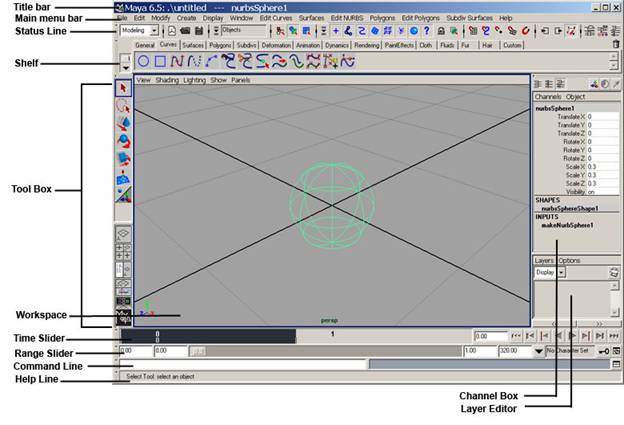
Fig 1-1 Maya User Interface
The Menu Bar
There are different menu sets in Maya that correspond to the more specific aspects of the application like Animation, Modeling, Dynamics, Rendering, cloth and Maya Live. The cloth and Maya Live are available with Maya unlimited version. These Menu sets can also be accessed using the hot keys F2, F3, F4 etc.
The menus in the menu sets behave similarly as a normal window menu. Other than the menu sets, there are common menus like File, Edit etc.
Any Menu item that has double lines over it can be dragged of the menu bar to create a min-toolbox so that the commonly used tools can float on the desktop.
You can hide or display different UI elements from the Menu item Display-> UI Elements.

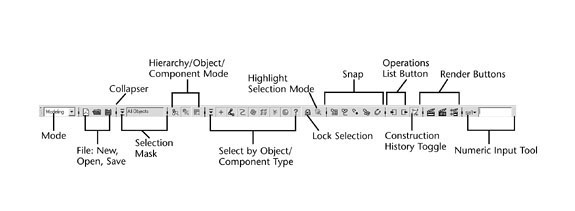
Fig1-2 Menu Bar
The Status Line
The commands available on the status line are mostly use for the purpose of modeling. On the extreme left we have mode selector that helps us to change modes between modeling, animation, rendering or dynamics etc.
A collapser is a clickable switch for hiding a section of the Status Line. Collapsers can be used to hide or display sections of the status line and adjust the number of available functions at an instance.

Fig1-3 Status Line
Selection Mask lets us select the masking preset so that certain types of objects can be ignored while making selections in a 3d panel. The icons to the right of the list box show the masking selections that have been made. The selection mask list box acts as a preset for the buttons in the Select by Type area farther to the right. These buttons correspond to Hierarchy, Object and Component mode. These functions can be used to select entire objects and mask the selection to pick only particular type of objects such as surfaces, lines, cameras etc.
Component Selection mode enables you to adjust subcomponents of an object, such as letting you select a certain portion of an object such as a box or a sphere and deform it. The hierarchy selection mode is used to select only the parent or only the children objects, this comes in handy when setting up object hierarchies.
A selection can be locked by pressing the Lock Selection button. This helps in avoiding accidentally de-selection of an object. Next is Highlight Selection Mode button, a toggle to highlight the selected object in the display.
We use snap tools to ease modeling and modifying objects by making it seem as though an object or part of an object is drawn toward another.
You use the Operations List buttons to view upstream and downstream connections and enable or disable them. Next is Construction History toggle and Maya uses this to record construction. History is not related to the Undo operation. Having Construction History enabled can make files large and slow to load, however, so you might opt to turn it off sometimes.
Next we have the Quick Render, Interactive Photorealistic Renderer(IPR) and Render Globals button. Quick Render and Interactive Photorealistic Renderer is used to render a scene at full quality. IPR rendering is slower, but when finished, it can update the rendering in nearly real time. Next is the Render Globals button, which controls the size of the rendering and many other parameters.
The last we have Numeric Input tool. It can operate in different types of modes. It is used to type in a prefix or common letters and select all the objects you want quickly, rename the currently selected object, and enter an exact value for the current highlighted transform.
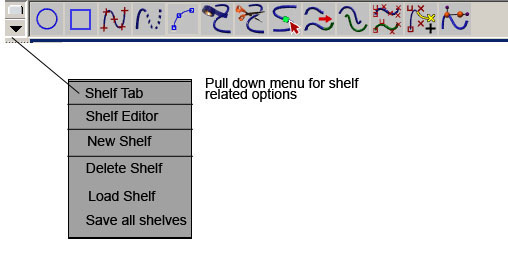
Shelf
Shelf contains different tools and commands. The shelf can be customized for one's specific needs. It is used to organize commonly used functions and tools into groups. You can create different shelves for different functions like modeling, animation, texturing etc with the required tools for each function.

Fig1-4 Shelf
Tool Box
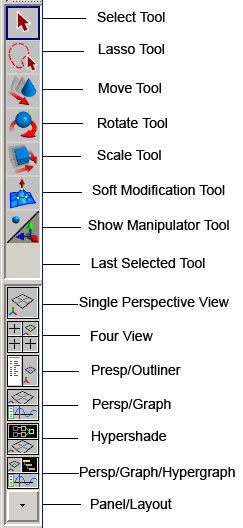
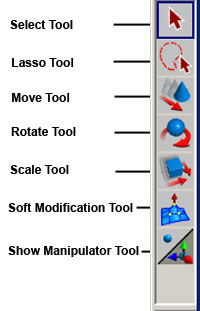
Maya Tool Box contains common tools as well as Layout buttons for changing views and layouts. The first one is the select tool. As the name explains itself, while this option is selected, you can use the mouse pointer to click over a particular object to select it. You can also click and drag over a number of objects to select them all together. The lasso tool is also used for selection in a way that you can draw a free hand border around the objects to be selected.
The move, rotate and scale tools are used for transforming objects in Maya. The soft modification tool is used to select the sub-object elements and modify them by moving, rotating or scaling in a way that the neighboring sub-objects also get affected by this deformation with the effect being an inverse of distance from the primary selected sub-objects.

Fig1-5 Toolbox
The last selected tool section shows the last used tool for easy access.
The single perspective view button lets you view the workspace as a single large view from a single perspective. The Four views can be used to view the workspace in four sections with each section containing the three orthographic views top, side and front and a perspective view respectively.
The other combination options below these tools are used to divide the workspace into different section in such a way that one section contains the view of the scene and other contains an animation or rendering editor so that you can edit the attributes and watch the results simultaneously.
Workspace
The Workspace displays by default in a perspective window or panel. The purpose of using workspace is to view your scene. You can display various editors and arrange the workspace panels in different layouts. The workspace can be divided into sections to accommodate the orthographic and perspective views of the scenes as well as the different editors for animation, texturing and rendering etc.
Time Slider and Range Slider
The Two Sliders are for controlling the frames in your animation. The Time Slider includes the playback buttons and the current time indicator. The Range slider includes start and end times and allows animators to focus on a specific part of the animation.

Fig1-6 Time slider and Range slider
Command Line
The command Line lets you enter the MEL (Maya embedded Language) commands to perform various functions. The MEL is a powerful feature of Maya that provides us with a vast flexibility and a scope to exploit the Maya tools beyond the user interface.
The left side is where you can type MEL commands and the right half displays system responses, error messages, and warnings. For a longer series of commands, use the Script Editor. The right side can also show echoes of all commands if you turn on Script> Echo All Commands from the Script Editor.

Fig1-7 Maya Command Line
Help Line
Like several other applications, you can look at the help line for descriptions, instructions, and other useful information. While a tool is selected, the helpline gives out a brief description for "how to" and "what for".
Panel Menus
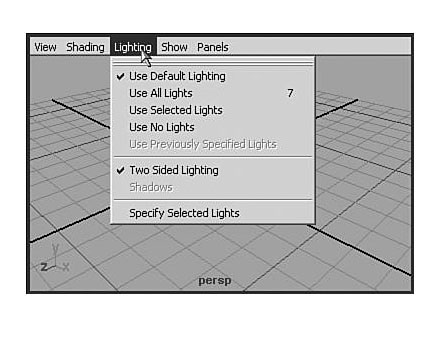
Every view panel you work in has a common set of menus at the top. The panel menu that appears in a 3d scene, shown here with lighting menu selected. If the panel menus do not appear, you can enable them in Window> Settings/Preferences> Preferences, and then click the Interface entry under the Categories list on the left side of the dialog box.
Under the View menu, you'll see options for Look at Selected, Frame Selected, and Frame All. These options are helpful for finding an item and focusing on it.
Under the Shading menu, the first two entries are Wireframe (hotkey: 4) and Smooth Shade All (hotkey: 5).An important option to note is the NURBS detail mode. When you're working with NURBS, you can display them in three detail levels: low (hotkey: 1), medium (hotkey: 2), or high (hotkey: 3). These hotkeys work only with NURBS.

Fig1-8 Panel Menu
The Lighting menu has an option for using existing lights in the scene (hotkey: 7) with this panel's Shaded mode. Normally, Shaded mode is automatically illuminated (with "default lights") in a crude way that serves to get some light in the scene for viewing or rendering a new model.
Use the Show menu to selectively hide all entities of a certain type. For example, you often use it to hide cameras and lights, just to clean up the view so that you can focus on objects. At the bottom of this menu is an option to hide the grid, which is useful when you want to simplify the view.
Under the Panels menu, use the top three options to select what the panel is seeing in a 3D view.
The next three options let you change the entire layout of the panels. The Panel item displays options for switching the selected panel to some other window, such as a rendered view or the Graph Editor. Next is Layouts, which determines how the view area is split into windows. Below it is Saved Layouts, which is similar to the Quick Layout buttons below the toolbox.
Hotkeys
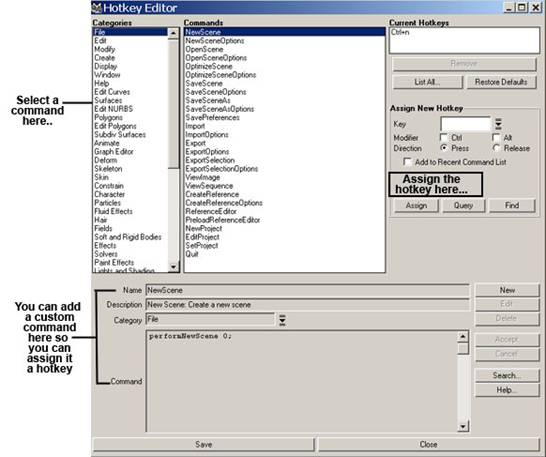
Hotkeys are also known as keyboard shortcuts. There are several default hotkeys. You can change these hotkeys and assign new ones using the Hotkey editor by
- Selecting Window>Settings/Preferences>Hotkeys.
- Select the category and command,
- In the assign new Hotkey area, specify the key combination .You can see a list of which keys are unmapped by clicking List All.

Fig1-9 Hotkey Editor
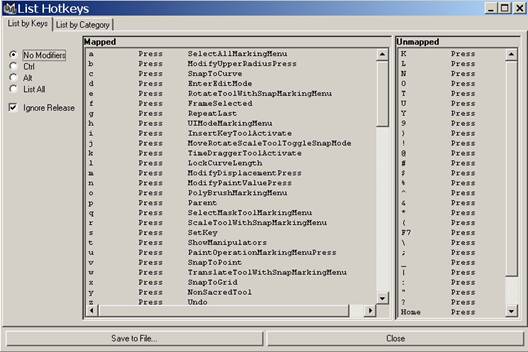
Viewing hotkey lists
Click List All to view a list of mapped and unmapped keys.

Fig1-10 Hotkeys reference
The Hotbox
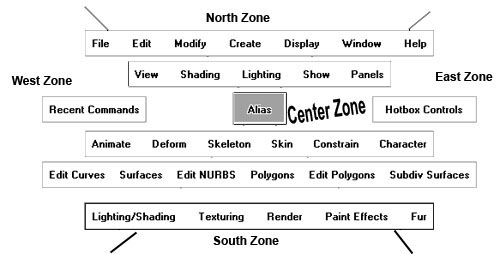
Maya's Hotbox is a utility to get quickly to the menus that are available in the menu bar. It pops up when you press and hold spacebar. Once you customize the Hotbox, it provides quick access to the menus you use, hiding menus that are irrelevant to your work. It has five zones with special options. Five zones are North, South, East, West and center.
To see the entire Hotbox, click in the Hotbox Controls section on the right-hand side of the window, and drag your cursor over the Show All option. You might want to come back to this same Hotbox option and disable the Cloth and Live menus if you won't be using them.
Fig1-11 Hotbox
In order to disable the Hotbox, Select window>Settings/Preferences > Hotkeys. The Hotkey Editor window opens. From the editor window select Hotbox in the list of Categories. Select Show Hotbox from the list of commands, Select space from current Hotkeys, and then click on the Remove button. This turns off the hotkey functionality. Click the Save button and then the close button.
- Share this on del.icio.us
- Digg this!
- Stumble upon something good? Share it on StumbleUpon
- Share this on Reddit
- Add this to Google Bookmarks
- Tweet This!
- Share this on Facebook
- Share this on Mixx
- Subscribe
- Buzz up!
- Share this on Linkedin
- Submit this to DesignFloat
- Share this on Technorati
- Submit this to Script & Style
- Post this to MySpace
- Share this on Blinklist
- Share this on FriendFeed
- Seed this on Newsvine
MAYA Tutorial - Transforms in MAYA
"Transform" of an object means three functions: position, rotation, and scale. Each function has three components—for X, Y, and Z. So transform contains 9 variables in total 3 defining each function. When you create a scene entity, its transform appears in the Channel Box. Here you will learn how to scale, rotate, and move your objects. Whenever you give a command in Maya to create an object, it is created using default transform which defines the position to be in the center of the scene at 0,0,0 coordinates, or origin.
In order to customize the object transform, you need to move, rotate, and scale the object to place it in the position you want. You can Move, scale, and rotate the primitive object into its final position either by direct manipulation or by entering numeric values through an editor.
You can also Duplicate the primitive objects to create multiple copies of the original or create different variations from your original primitive object.
When you create a new primitive in Maya, it becomes the selected object. In the Channel Box, you can access the object's creation parameters, the ones used most often to modify a new shape.
The ToolBox
In order to manipulate an object's transform, the basic tools required from the toolbox are select tool, lasso serves a similar purpose, move tool for changing the position of the object, rotate tool for changing the orientation of the object and the scale tool for changing the scale of the object.

Fig2-1 The basic transform tools
Selecting Objects
There are many ways to select objects in Maya.
- You can select object individually.
- You can select all objects in the scene.
- You can select objects of a specified type.
- You can select objects of a specified name.
- You can select all objects in a set.
- You can select all objects in a display layer.
Inverting a Selection
Use Invert Selection to select all objects in the scene that are not selected. For example if you select two of five objects in a scene and then select Edit>Invert Selection, the other three objects are selected instead. This only works on objects not components.
To select all displayed objects
Select Edit > Select All
To deselect all objects
Click anywhere in the view.
Using Transforms
When you are in the Move (hotkey: w), Rotate (hotkey: e), or Scale (hotkey: r) mode, you have several options for transforming the object . Generally, if you click and drag on the surface of a selected object, or on the center point for the manipulator handles, you can freely move or rotate the object. In Scale mode, the object scales uniformly. You can also click and drag on any of the handles to have the action constrained to that axis.
The Move Tool
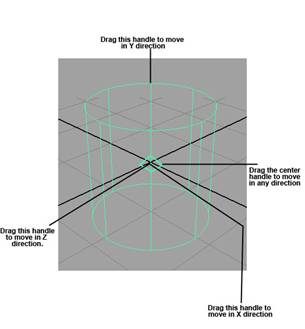
Click the Move Tool icon in the Tool Box and then select the object you want to move. Maya displays a manipulator with four handles-one to move along each axis and one to move anywhere with in the planes.

Fig2-2 The move tool
Click one of the handles, as indicated above. The selected handle changes color when active .The default color is yellow. If you double-click on the Tool Box icons for move, rotate, and scale, you get options for the tools (none appear for scale, but at least an empty dialog box appears). A useful option in this dialog box is snap spacing.
The Rotate Tool
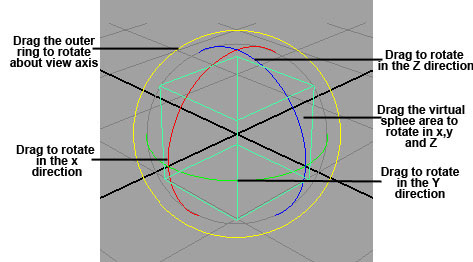
It use the Rotate Tool to rotate objects about any or all three axes. Click the Rotate Tool icon in the Tool Box. Select the object you want to rotate. Maya displays a rotate manipulator consisting of four rings plus a virtual sphere enclosed by the rings or handles. The colors correspond to XYZ axes.

Fig2-3 The rotate tool
Click one of the handles, as indicated above. The selected handle changes color when active .The default color is yellow. Use the X, Y, Z rings to perform constrained rotations. Use the outer ring to rotate relative to the view.
When you rotate a component, Maya rotates it about a temporary pivot which is initially set to the center of the component's bounding box. In the rotate options, you can find the option to set snaps, which is helpful when you want to rotate objects in discrete increments. A good setting might be 15 degrees to make it easy to rotate objects to precise 30-, 45-, 60-, and 90-degree positions. Note that this snapping happens only when you use a manipulator's axis handle.
The Scale Tool
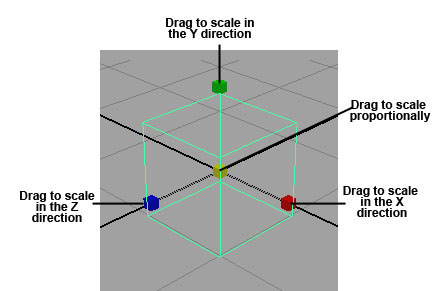
Use the Scale Tool to change the size of the objects by scaling proportionally in all three dimensions. You can also scale non- proportionally in one dimension at a time.
Click the Scale Tool icon in the Tool Box and select the object you want to scale. Maya displays a scale manipulator consisting of four handles. The color corresponds to XYZ axes.

Fig2-4 The scale tool
Soft Modification Tool
This lets you push and pull geometry .By default, the amount of deformation is greatest at the center of the push/pull, and gradually falls off further away from the centre. However, you can control the falloff of the deformation to create various types of effects.
You can use this tool on NURBS surfaces, polygonal surfaces, subdivision surfaces, curves, particles or any object with components.
Show Manipulator Tool
This Tool lets you edit the construction history of an operation or the attributes of an object itself. This tool lets you access the input node of an object. A manipulator is a good way to access the history of a surface created with the construction history. Several manipulators can be active at one time.
Undoing and Redoing
Undo reverse the last action you performed on a selected object. This action transform an object to its original position.
Select Edit>Undo
Select Edit>Redo to perform the last action you reversed.
Duplicating Objects
Sometimes, you need to copy an object many times to create a complex object. Maya's object duplicator is under Edit > Duplicate on the menu. The default is to duplicate an object in place; you can do this with the hotkey Ctrl +d. The new duplicate appears by default exactly over the original object, so you normally follow a duplication with a transform.
Sometime, you want to create more than one duplicate. Use the Edit > Duplicate Option box to modify how duplicates are made.
Instancing
Another way to copy object is instancing. Maya redisplays the geometry being instanced. Since instances are not actual copies of the original geometry.
There are certain demerits of using instancing
- Instances share the same shader as the original geometry and can not be assigned as independent shaders.
- Instanced lights have no effect.
- When you create an instance of an already instanced node, Maya does not create a new level.
- Functions like extrude and insert can not be used on instanced items.
Snapping
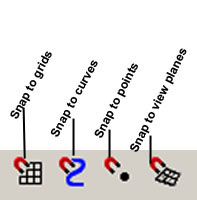
The Snap options let you control an object or component's position by attaching it to a grid, point, curve or view plane. As you draw, rotate, resize or drag the objects ,it snap to the grid, point, curve or view plane.

Fig2-5 Snapping options
Snap to grids
This option snaps a vertex or pivot point to a grid corner. If you select snap to grids before you create a curve, its vertices snap to the grid corners.
Snap to curves
This option snaps a vertex or pivot point to a curve or curve on surface.
Snap to points
This option snaps a vertex or pivot point to a point.
Snap to view planes
This option snaps a vertex or pivot point to a view plane.
Snapping hotkeys
x for grid snap
c for curve snap
v for point snap
How to use the grid Snap HotKey?
Select the object you want to snap and click the Move tool icon. Press and hold down the c key while click-dragging on the curve you want to snap with the middle mouse button.
Similarly you can use rest of the keys
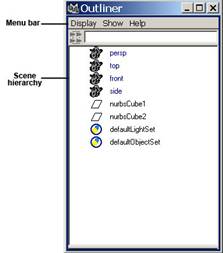
Outliner
You can use outliner to examine the structure and components of the scene. It also displays shape nodes, connections and attributes. With the outliner you can make an object the child of a parent object. It selects and renames an object. Last but not least it reorder nodes.
To open the Outliner in the window
Select Window > Outliner

Fig2-6 The outliner
Grouping
Sometimes, you have groups of objects in your scene that are related to each other without being connected as a single entity. Any collection of objects can be selected and made into a group by choosing Edit>Group on the menu. Note that the objects are not tied up into this bundle; you can still select them independently. There's simply a new object that stands for the collection.
Parenting and Grouping
Parents and children in hierarchies work as follows: Where the parent goes, the child must follow, but the child is otherwise free to roam. The child objects can still be animated independently, however, without affecting the parent .With groups, the group node can be animated and all the members of the group follow the group node, but the group's members can still animate independently of the group. When you group several objects, Maya creates the group transform node, which can't be rendered.
You can directly assign hierarchical relationships to objects by selecting the child object(s), Shift-clicking to select the parent, and then choosing Edit >Parent (hotkey: p). Any transform applied to the parent is then reflected in the child. You can also break this bond by using Edit>Unparent (hotkey: Shift+P). This works only when the child object or objects are selected.
Channel Box
This is used to modify an object's attribute values. You can change multiple attribute values of multiple objects. It takes up less much less space in the window. With this you can control construction history. It appears in the Maya Window only it you choose to display it. The information displayed in the Channel Box varies, depending on what kind of object or component you have selected. If you haven't selected an object, the Channel Box region is blank.
In order to display the channel box
Turn on Display> UI Elements > Channel Box/Layer Editor.- Share this on del.icio.us
- Digg this!
- Stumble upon something good? Share it on StumbleUpon
- Share this on Reddit
- Add this to Google Bookmarks
- Tweet This!
- Share this on Facebook
- Share this on Mixx
- Subscribe
- Buzz up!
- Share this on Linkedin
- Submit this to DesignFloat
- Share this on Technorati
- Submit this to Script & Style
- Post this to MySpace
- Share this on Blinklist
- Share this on FriendFeed
- Seed this on Newsvine
MAYA Tutorial - Nurbs Curves and Surfaces
Maya offers a powerful modeling system known as NURBS—Non-Uniform Rational B-Splines. NURBS modeling is not simply putting objects together. Unlike fixed polygons , NURBS create 3D objects from curves and surfaces. Therefore, NURBS can be modeled in a variety of ways.
NURBS modeling is considered a better alternative to SUBd modeling as it gives you more precise control. They have their own rules and limitations for how you can build, attach, and cut them, but in general, they are quite flexible. The faceted, low-resolution look that often occurs when creating curved surfaces with polygons is easily handled in NURBS models, which can display curved surfaces as virtually any number of polygons.
To make it a little simpler, however, NURBS are simply a variation of splines, which are used to define a curve. Curves are the basis for the underlying mathematical structure of what makes up a NURBS surface. Nurbs modeling has capability for creating:
- organic ,flowing surfaces such as animals, human bodies and fruits.
- Industrial surfaces such as automobiles, clocks and toasters.
- Smooth surfaces adjustable over broad areas with few control points.
Nurbs Primitives
Nurbs primitives are common geometric objects such as spheres, cubes and cylinders. They are often used as the foundation for other shapes.
Sphere
Select Create > Nurbs primitives >Sphere. After you set the options ,click the Create button.
Pivot
By default, the pivot is set to Object and the primitive is created at the origin. If you set Pivot to User defined, you can enter values in the Pivot point X, Y and Z boxes to position the pivots.
Axis
Select X, Y or Z to specify a preset axis direction of the object. Select Active View to create the object perpendicular to the current orthographic view. The Active view option has no effect when the current modeling view is a camera or perspective view.
Sweep Angles
These options let you create a partial sphere by specifying a degree of rotation. Degree values can range from 0 to 360 degree.
Radius
Sets the width and depth of the primitive.
Surface Degree
A linear surface has a faceted appearance : a cubic surface is rounded.
Sections
Set the number of surface curves created on the sphere in one direction. These curves are also called isoparms, show the outline of the surface shape.

Fig 3-1 Sections
Spans
Set the number of surface curves created on the sphere in the direction that crosses the section direction.
Fig 3-2 Spans
Cube
A cube has six sides, each of them is selectable. You can select a side of the cube in the view or click its heading in the outliner.
Width, Length and Height sets the cube dimensions.
Cylinder
You can create a cylinder with or without end caps. End caps is a unique feature to the creation of the cylinder. You can create caps for either, both or no ends of the cylinder.
Cone
You can create a cone with or without a cap on its base.
Plane
A plane is flat surface made up of specified number of patches .
Torus
A torus is a 3d ring.
Circle
A circle is a curve not a surface. Its features are similar to the sphere.
Curves
The foundation of a Nurbs surface is a curve. Surfaces are web of interconnected curves. The curves help you create and modify surfaces. Proficiency at drawing and editing curves is an important part of Nurbs modeling.
You can not render curves. With Nurbs curves ,you can position points on a curve or surface exactly where you want them and reshape the curve or surface by moving just a few control points that lie on or near the curve. Examples of NURBS primitives are spheres, cubes, cylinders, cones and planes.
A major advantage of modeling with NURBS in Maya is that you can convert any NURBS object to Subdivision Surfaces (also called "SubDs") or polygons at any time.
Using NURBS can have its drawbacks, however. When modeling a character that needs to be animated, you might notice seams, or even visible gaps, between NURBS surfaces .As a result of the way NURBS are constructed, you rarely come up with an object composed of a single surface, and the surfaces must meet together exactly to avoid these problems.
Elements of a Curve
The elements of a curve follow:
A curve point is an arbitrary point on the curve. It can have the same position as a CV or edit point.
CVs are control vertices ,These points often lie away from the curve.
Edit points are also called knots. You can move these points to reposition a specific point on the curve. You can't move the edit points of a surface.
The start of a curve is the first point of the curve created when you draw the curve.The end of the curve is the last point of the curve you create. You need to know which points are the start and end points for certain modeling operations.
The curve direction is displayed as a small letter u.
A hull is a network of straight lines that connects CVs. Hulls are mainly visual aids to see where interconnected CVs exist.
A span is the point of a curve between the two edit points. If you add extra edit points to a curve enhance your control of its shape, you increase the number of spans. you don't select and manipulate a curve span directly.
Fig 3-3 Elements of curve
Tools for Creating Curves
There are three tools for creating curves
- Create > CV Curve Tool
- Create > EP Curve Tool
- Create > Pencil Curve Tool
CV Curve Tool
This Tool creates the curve's CV exactly where you click them. It creates edit points based on where you create the CVs. When it turns white, you have created enough CVs to complete the curve. You must create at least four CVs when you use the default option settings.
EP Curve Tool
The EP Curve Tool creates the curve's edit points exactly where you click them. It creates CVs in positions based on where you create the edit points. EP stands for edit points. You must place at least two edit points to create the curve.
Pencil Curve Tool
The Pencil Tool lets you draw a curve by dragging the mouse or by using a digitizing pen and tablet. When you create a curve using the Pencil Curve Tool, you can not delete curve segments by pressing the Backspace key.
Maya creates a trail of edit points and sometimes several curves where you drag the mouse or pen. The CVs created with this tool might seem to pose efficiency and control problems, you can simplify the curves with Edit Curves > Rebuild Curve.
Attaching curves
Use Edit Curves > Attach Curves to create a single curve from two curves.
Attach Method
Connect joins the curves with minimal curvature smoothing at the joint point.
Blends smooths the curvature at the joint point based on the blend Bias value.
Detaching Curves
Use Edit Curves > Detach Curves to break a curve into two curves or to open a closed curve.
Construction Plane
Use Create > Construction Plane to create a plane as a construction aid. You can not rotate a construction plane, make it a live surface, then draw a curve on it. You can not render or animate a construction plane.
Select create > Construction Plane to open the option window.

Fig 3-4 Construction plane options
Pole Axis
Sets the orientation of the construction plane. The default is an XY plane.

Fig 3-5 Orientation of the construction plane
Size
Sets the size of the plane in grid units.
Extending curves
Use Edit Curves> Extend >Extend curve to extend a curve beyond its original creation length. To extend a revolve surface ,you can extend the curve used by the revolve operation.
Select Edit curves > Extend > Extend Curve and set the desired options.
Click the Extend button.
By default the curve is extended 2 unit at its end.

Fig 3-6 Extending curves
Reversing the curve direction
Select Edit Curves > Reverse Curve Direction.
Rebuilding curves
Use Edit Curves > Rebuild curve to rebuild a Nurbs curve or curve on surface to smooth it or lessen its complexity.
Lofting Curves and Surfaces
Lofting is used to construct a surface that passes through a series of profile curves. The curves can be curves -on -surface, surface isoparms or trimmed edges.
With the help of Loft feature, you can create intermediate areas between any two surfaces created with boundary curves. Before you begin ,you need at least two profiles curves or surface isoparms.
Pick the first curve you want to loft, then shift-click to pick subsequent curves.
Select Surfaces >Loft
You can add new curves to an existing lofted surfaces created with construction history.
Birail Tools
Birail Tools that create a surface by sweeping one or more profile curve along two rail curves. Birail 1 sweeps one profile curve, Birail 2 sweeps two, Birail 3+ sweeps three or more.
Before using Birail Tool ,you must check all workspace to make sure the profile curve (s) intersected the rail curves. Profile and rail curves can be isoparms, curves -on-surface,trim boundaries or boundary curves of an existing surfaces.
Select Surfaces > Birail >Birail n Tool.
Beveling Surfaces
Bevel is used to create an extruded surface with a beveled edge from any curve, including text curves and trim edges. You can bevel surfaces for instance, to create a ledge on a building or the rolled edge on an upholstered chair.
Click the curve you want to bevel and select Surfaces > Bevel.
Bevel width
This value specifies the initial width of the bevel as viewed from the front of the curve or isoparm.
Bevel Depth
This value sets the initial depth of the bevel part of the surface. The combination of bevel width and depth sets the bevel angle.
Extrude Height
This value specifies the height of extruded portion of the surface, not including the bevel surface area.
Bevel Corners
This options specify how corners in the original construction curves are handled in the beveled surface.
- Share this on del.icio.us
- Digg this!
- Stumble upon something good? Share it on StumbleUpon
- Share this on Reddit
- Add this to Google Bookmarks
- Tweet This!
- Share this on Facebook
- Share this on Mixx
- Subscribe
- Buzz up!
- Share this on Linkedin
- Submit this to DesignFloat
- Share this on Technorati
- Submit this to Script & Style
- Post this to MySpace
- Share this on Blinklist
- Share this on FriendFeed
- Seed this on Newsvine